Step 1. Copy your API credentials
To integrate, follow the steps below:
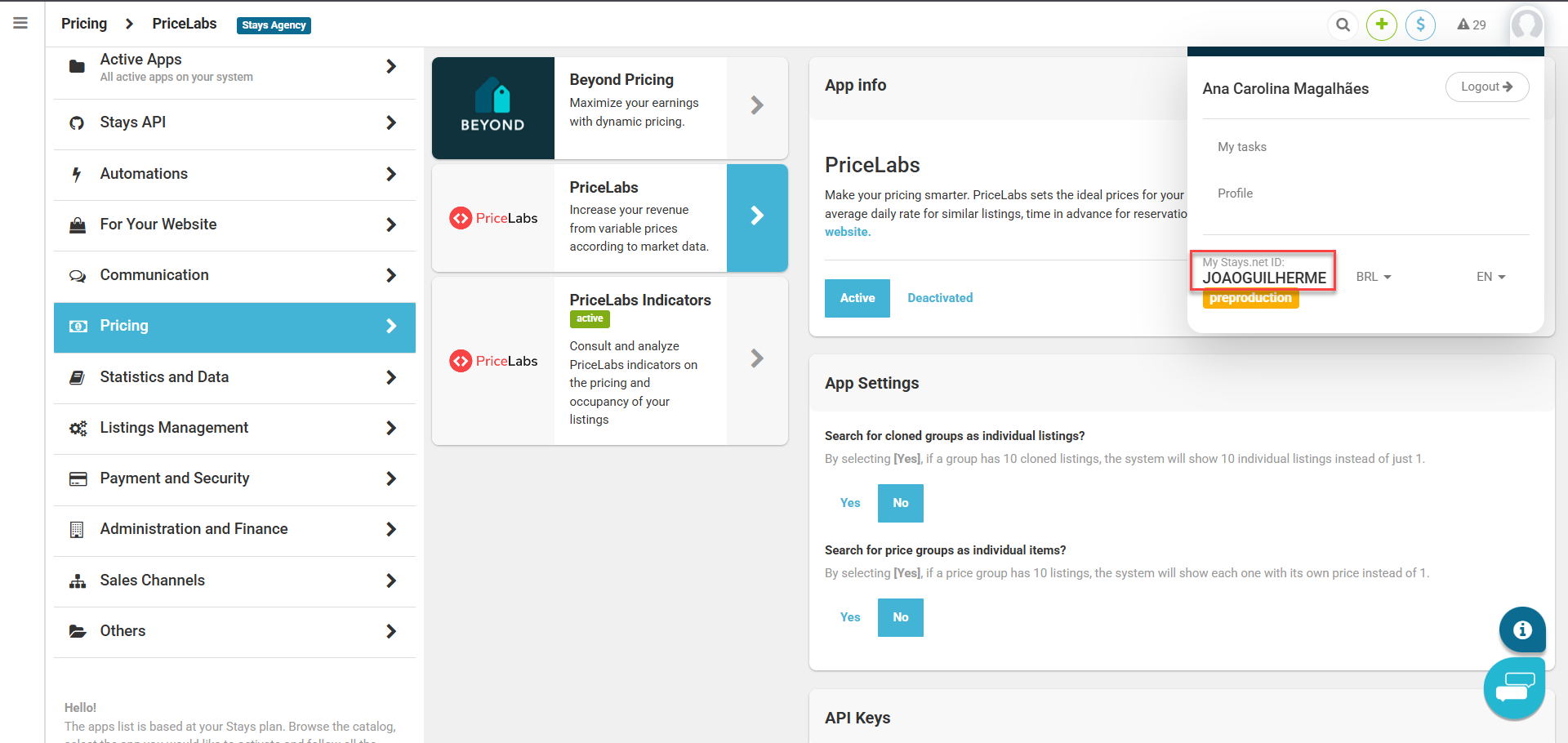
- Access [App Center > Pricing > PriceLabs];
- Click on [Active];
- On [API Keys], copy the login and password;
- Also have your Stays ID handy, located in the upper right corner of your profile picture.
Step 2. Connect the property on Stays
- On the menu, go to [Channel Managers Dashboard > Stays Website];
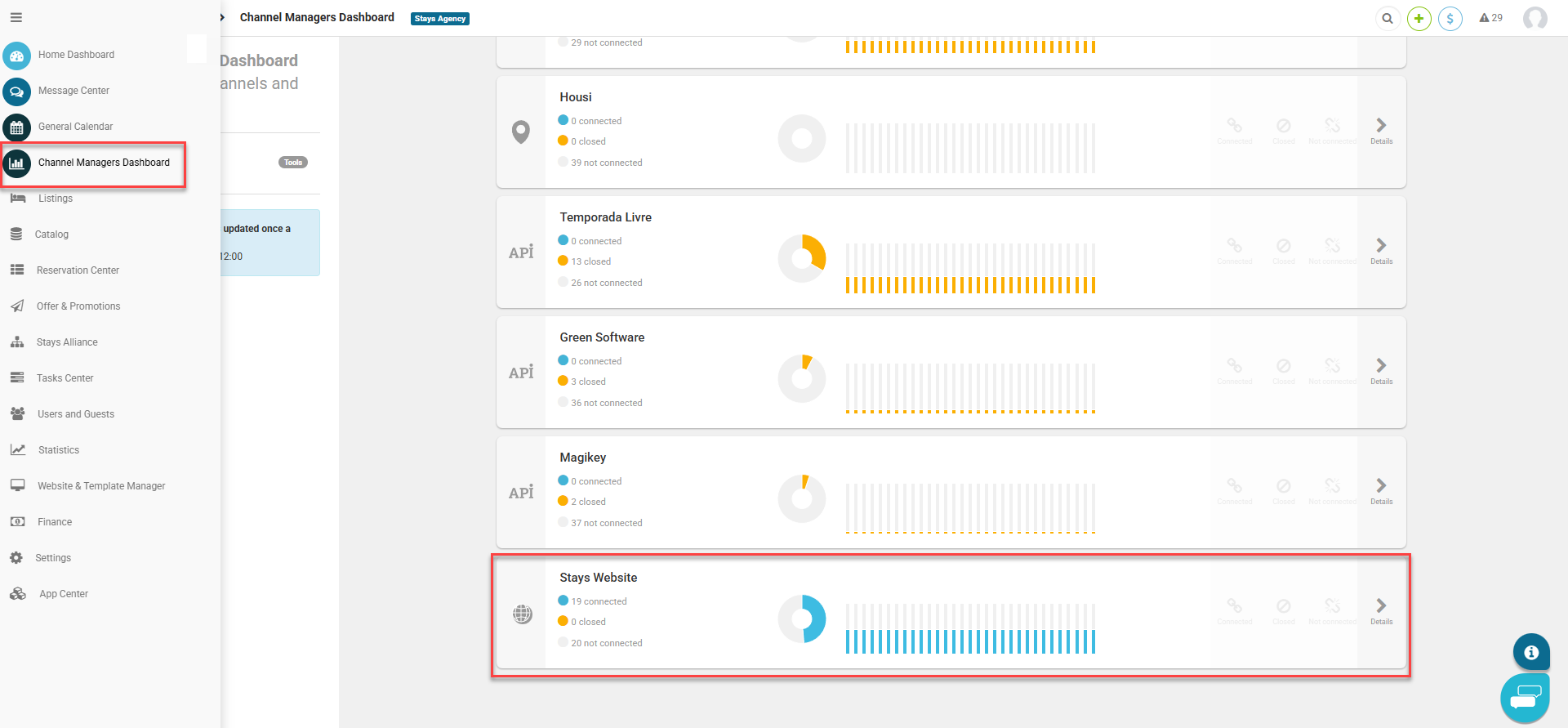
- Select the property you want to connect and then click on [Connect].
Step 3. Enable integration in the PriceLabs dashboard.
Now that you have the API connection information, access your PriceLabs dashboard and follow these steps:
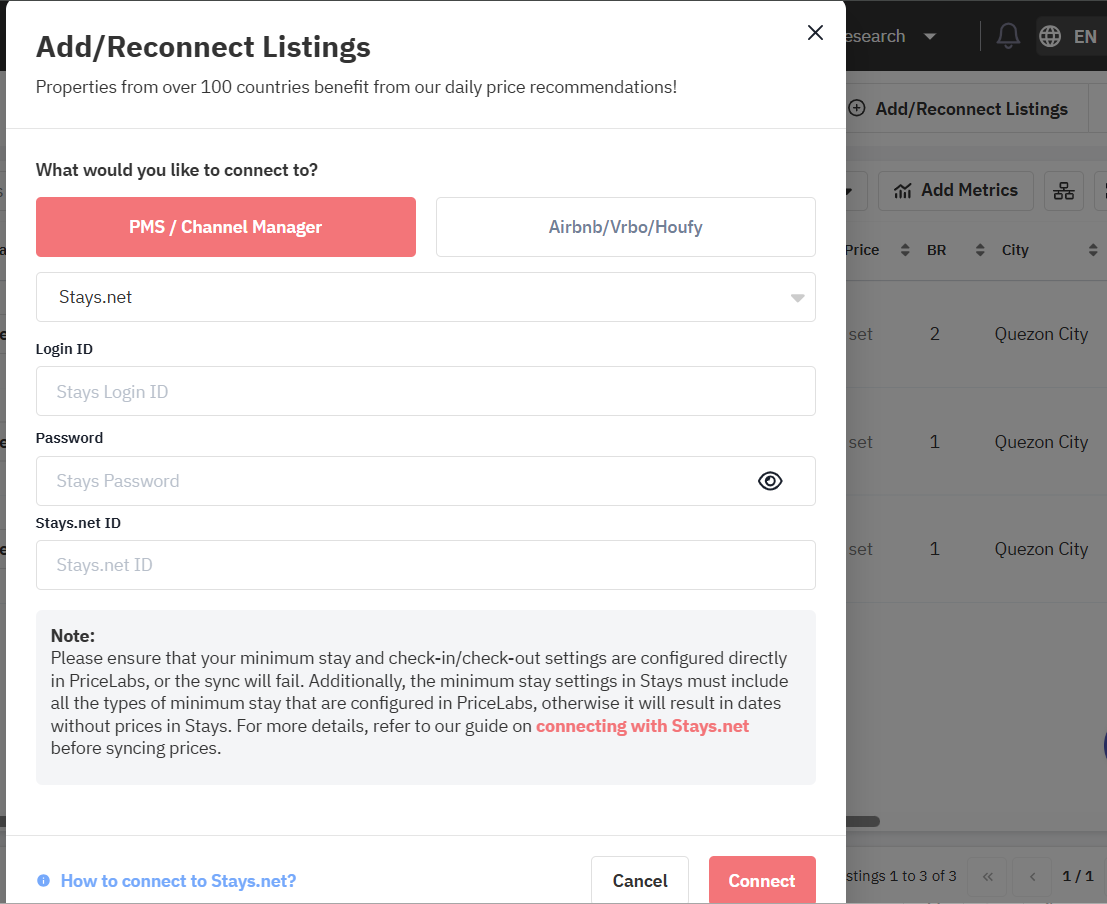
- Click on [Add/Reconnect Listings];
- In the dropdown menu, select [Stays];
- Paste the App Center credentials and Stays ID generated in Step 1.
- Click on [Connect].
Step 4. Set up and sync
In PriceLabs, configure your pricing and stay preferences before syncing with Stays:
- Specify your minimum stay preferences, minimum, base, maximum prices and check-in and check-out restrictions. Set pricing by period or by night by following the tutorial by clicking here;
- Generate the prices and review the results to ensure they are correct;
- Synchronize with your Stays system.